Print Size Calculator
Enter the image pixels and the DPI to get the print size in inches and cm, and the largest size at other resolutions.
Recent
Your last 10 settings, saved only in this browser. Nothing is uploaded.
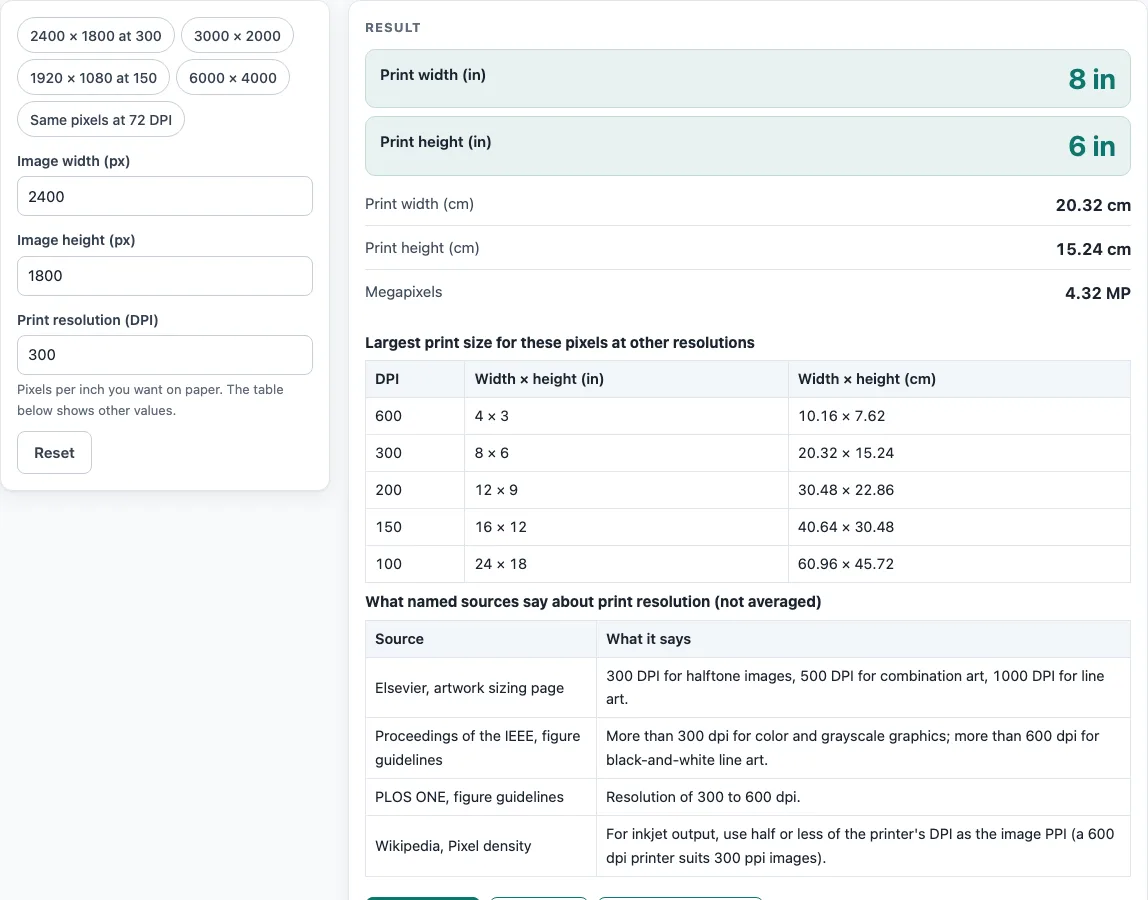
How to use the Print Size Calculator
- Enter the width in “Image width (px)”. Use a whole number.
- Enter the height in “Image height (px)”. Use a whole number.
- Enter the resolution in “Print resolution (DPI)”.
- Read the print width and height in inches and in centimeters. The calculation is pixels ÷ DPI for each side.
- Read the megapixels, shown in MP.
- Check for a warning. The tool warns when the DPI is below 300 or above 10,000.
- Change one input at a time to see how the print size changes. Lower DPI gives a larger print from the same pixels, and higher DPI gives a smaller one.
You can also start from a preset. The presets are 2400 × 1800 at 300 DPI, 3000 × 2000, 1920 × 1080 at 150 DPI, 6000 × 4000, and the same pixels at 72 DPI. The page also lists the largest print size for the same pixels at 600, 300, 200, 150 and 100 DPI, which helps you compare resolutions quickly. A second table sets out what Elsevier, Proceedings of the IEEE, PLOS ONE and Wikipedia’s Pixel density article each say about print resolution. The figures are shown side by side and are not averaged, and the page says they are for journal figures. Read them as background, then enter the DPI that your own guide names. Try the default values first: 2400 × 1800 px at 300 DPI gives 8 × 6 in, which is 20.32 × 15.24 cm.
How is print size calculated from pixels and DPI?
Print size is the number of pixels divided by the DPI. Divide the width in pixels by the DPI to get the width in inches, and do the same for the height. The result is the largest size that the pixels can cover at that resolution.
For example, 2400 × 1800 pixels at 300 DPI gives 8 × 6 in. Because 1 in = 2.54 cm exactly, the same size is 20.32 × 15.24 cm. A single value shows the method clearly: 1063 px at 300 DPI is 3.543 in, which is 90.0 mm. That width is the single-column width on Elsevier’s artwork sizing page.
Other examples follow the same rule. 1920 × 1080 pixels at 150 DPI gives 12.8 × 7.2 in. 6000 × 4000 pixels at 600 DPI gives 10 × 6.667 in. The same pixels printed at a lower DPI cover a larger area, so the DPI you choose decides the size as much as the pixels do.
What DPI do publishers ask for?
The named sources do not agree, so the calculator shows their figures side by side rather than averaging them. Elsevier artwork sizing lists 300 DPI for halftone, 500 for combination art and 1000 for line art. Proceedings of the IEEE lists more than 300 dpi for color and grayscale and more than 600 dpi for black-and-white line art. PLOS ONE lists 300 to 600 dpi.
These figures are for journal figures. Other uses may set lower figures, so check the requirements for your own use. Publisher specifications change, so check the journal’s current author guide before you submit. Use the numbers as a planning guide, not as a final answer.
Why does the tool warn below 300 DPI?
The tool shows a warning when the DPI is below 300. That value is the lowest figure the listed journal guides name for photographs. A warning means the inputs need a second look. It does not mean the image is faulty.
The tool also warns above 10,000 DPI. Very high values can produce very small prints from a given set of pixels, so check that the number is what you meant to enter.
How do inkjet printers relate PPI and DPI?
PPI describes the pixels in an image, and DPI describes the dots a printer lays down. They are related but not the same. The Wikipedia Pixel density article suggests, for inkjet printing, using half or less of the printer’s DPI as the PPI. If you need to convert between the two, the PPI to DPI page covers that step.
Worked examples
| Input | Result |
|---|---|
| 2400 × 1800 px at 300 DPI | 8 × 6 in (20.32 × 15.24 cm) |
| 3000 × 2000 px at 300 DPI | 10 × 6.6667 in (25.4 × 16.933 cm) |
| 1920 × 1080 px at 150 DPI | 12.8 × 7.2 in (32.512 × 18.288 cm) |
| 6000 × 4000 px at 600 DPI | 10 × 6.6667 in (25.4 × 16.933 cm) |
| 1063 × 800 px at 300 DPI | 3.5433 × 2.6667 in (9.0001 × 6.7733 cm) |
Calculated by the tool above; open it with the same values to see each step.
Frequently asked questions
Is the print size calculator free to use?
Yes. It runs in your browser, is free, and needs no sign-up. You enter numbers only, so no file is read or uploaded.
What happens if I enter a DPI below 300?
The tool shows a warning. 300 is the lowest figure the listed journal guides name for photographs, so a lower value is worth checking before you go further.
What happens if I enter a DPI above 10,000?
The tool shows a warning above 10,000 DPI. Check that the value is correct, because very high DPI values give very small prints from the same pixels.
Does a calculated size tell me what a journal requires?
No. The result is a planning figure calculated from your inputs. It does not check your file against any journal’s rules. Check the journal’s current author guide before you submit.
Why does the result show both inches and centimeters?
Some guides and publishers use inches and others use centimeters. One inch equals 2.54 cm exactly, and the tool shows both from the same calculation.
What does the MP figure mean?
MP stands for megapixels, which is the total number of pixels in the image. For the default 2400 × 1800 example, 2400 × 1800 = 4,320,000 pixels, which is shown as 4.32 MP.
Related tools
- DPI to Pixels: Use this when you know the print size and DPI and need the pixel count.
- Image Size Calculator: Use this when you want to work out image dimensions for a figure.
- Pixels to Inches: Use this to convert a pixel count into inches at a chosen DPI.
- PPI to DPI: Use this when you need to move between image resolution (PPI) and printer resolution (DPI).
- JPG to TIFF Converter: Use this when your figure is a JPG and you need a TIFF file instead.
- PNG to TIFF Converter: Use this when your figure is a PNG and you need a TIFF file instead.