PPI to DPI
Enter the image pixels and the print width, or a screen resolution and diagonal, to get the PPI and the number to use as DPI in a layout program.
Recent
Your last 10 settings, saved only in this browser. Nothing is uploaded.
This ppi to dpi tool works out pixels per inch (PPI) for an image or a screen and shows how that number relates to the dots per inch (DPI) a printer places. PPI counts pixels in a file or on a screen. DPI most exactly describes printer dots, but many programs write DPI when they mean the PPI of an image, so the tool explains both uses.
The calculations run in your browser. Files are read inside the browser and never uploaded. There is no sign-up, and the tool is free. Results are calculated from your inputs, so they are only as accurate as the sizes you enter.
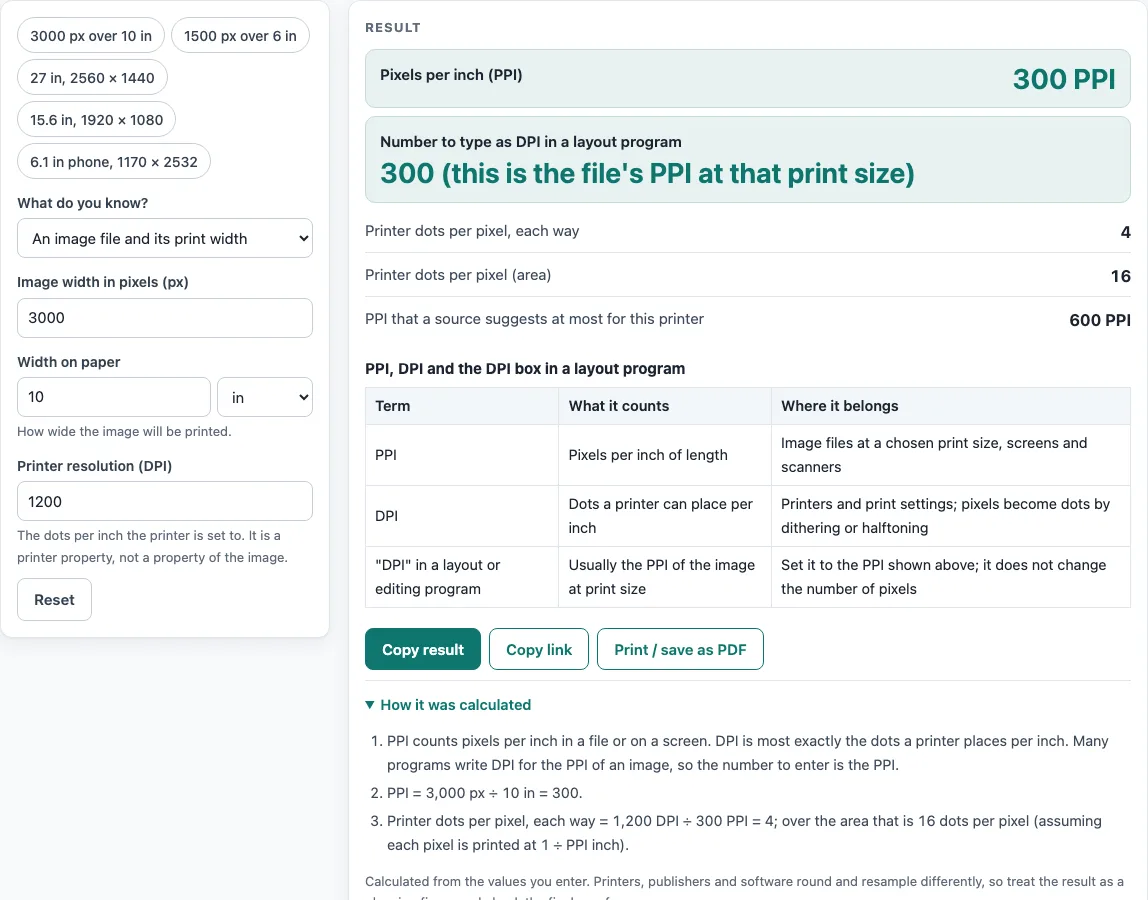
How to use the PPI to DPI tool
- Choose a mode in “What do you know?”: “An image file and its print width” or “A screen: resolution and diagonal”.
- For an image, enter the image width in pixels and the width on paper. For a quick start, use a preset such as 3000 px over 10 in or 1500 px over 6 in.
- For a screen, enter the screen diagonal and the horizontal and vertical resolution in pixels. A preset such as 27 in at 2560 × 1440 fills these in for you.
- Enter the printer resolution (DPI), such as 1200. The printer DPI is only used to count dots per pixel and to compare with a published suggestion.
- Read the PPI result. In image mode, this is the number to type into the DPI box of a layout program. It does not change the pixel count of your file.
- Read the dots per pixel. This is printer DPI ÷ PPI in each direction, and the area count. The default example (3000 px over 10 in, 1200 DPI printer) gives 300 PPI, 4 printer dots per pixel each way, and 16 dots per pixel by area.
- For a screen, read the pixel pitch, which is 25.4 ÷ PPI in mm.
- Read any warning. The tool flags PPI above half the printer DPI, PPI above the printer DPI, PPI below 72, and screen PPI above 1,500.
Each calculation assumes the file is printed at its own PPI, so one pixel covers 1 ÷ PPI inch.
What is the difference between PPI and DPI?
PPI, or pixels per inch, counts how many pixels fit into one inch of an image file or a screen. DPI, or dots per inch, most exactly refers to the number of dots a printer places in one inch. The two are often mixed up because many programs label the image’s PPI with the word DPI.
How do you convert pixels to PPI for a printed image?
Divide the pixel count by the width the image will have on paper, measured in inches. For example, 2400 px over 20 cm gives 2400 ÷ 7.874 in = 304.8 PPI. That PPI is the number to type into the DPI box of a layout program, and it does not change the pixel count.
How is PPI calculated for a screen?
Find the diagonal pixel count with √(horizontal² + vertical²), then divide by the diagonal size in inches. A 27 in screen at 2560 × 1440 gives 108.79 PPI. A 15.6 in screen at 1920 × 1080 gives 141.2 PPI, and a 6.1 in phone at 1170 × 2532 is about 457 PPI. Pixel pitch then follows as 25.4 ÷ PPI mm.
How many printer dots go into each image pixel?
Divide the printer DPI by the PPI. With a 1200 DPI printer and 300 PPI, each pixel gets 1200 ÷ 300 = 4 printer dots in each direction. Across the area, that is 4 × 4 = 16 dots per pixel. This ratio shows how much room the printer has to place dots for each pixel.
What PPI should a printed image use?
The tool’s suggestion comes from Wikipedia’s Pixel density article. For inkjet output, it suggests using half or less of the printer’s DPI as the PPI, so a 600 DPI printer suits 300 PPI. The page labels this as one source’s suggestion, not a rule. The warnings in the tool follow the same reasoning: PPI above half the printer DPI is flagged, and PPI above the printer DPI is flagged more strongly.
Why do sources disagree about PPI and DPI?
Sources blur the two terms. Wikipedia says DPI more accurately refers to printers, layout programs use the DPI box for image PPI, and print-shop pages call them interchangeable in everyday speech. The tool explains both uses so you can read each number in the context it was written for.
Worked examples
| Input | Result |
|---|---|
| 3000 px over 10 in | 300 PPI |
| 2400 px over 20 cm | 304.8 PPI |
| 2560 × 1440, 27 in diagonal | 108.8 PPI |
| 1920 × 1080, 15.6 in diagonal | 141.2 PPI |
| 3000 px over 5 in | 600 PPI |
Calculated by the tool above; open it with the same values to see each step.
Frequently asked questions
Is PPI the same as DPI?
Not in strict terms. PPI describes pixels in a file or on a screen, while DPI most exactly describes the dots a printer places. Many programs write DPI for an image’s PPI, which is why the two are often used interchangeably.
Does changing the PPI change the pixel count?
No. In image mode, the PPI result tells you how densely the existing pixels will print at a given width. The pixel count of the file stays the same.
What does the “PPI above half the printer DPI” warning mean?
It means the image’s PPI is higher than half of your printer’s DPI, so each pixel gets fewer than 2 printer dots in each direction. The warning reflects the inkjet suggestion from Wikipedia’s Pixel density article.
What PPI does the tool give for a 2400 px image over 20 cm?
It gives 304.8 PPI, calculated as 2400 px ÷ 7.874 in.
Why is a screen PPI above 1,500 flagged?
The tool flags screen PPI above 1,500 as a warning, so a result that high should be checked against the screen size and pixel counts you entered.
Does this tool tell me what a journal requires?
No. Results are calculated from your inputs. Publisher specifications change, so check the journal’s current author guide before you submit.
Related tools
- DPI to Pixels: use this when you know the DPI and need the pixel count for a given print size.
- Image Size Calculator: use this to work out image dimensions before you set the print width.
- JPG to TIFF Converter: use this if you need to change a JPEG file to the TIFF format.
- Pixels to Inches: use this to convert a pixel count into a length on paper.
- PNG to TIFF Converter: use this if you need to change a PNG file to the TIFF format.
- Print Size Calculator: use this to check how large an image will print at a chosen resolution.