PNG to TIFF Converter
Choose one or more PNG files, pick the DPI, colour and compression, and download baseline TIFF files. The conversion runs in this page and shows the real TIFF size.
Recent
Your last 10 settings, saved only in this browser. Nothing is uploaded.
How to use the PNG to TIFF converter
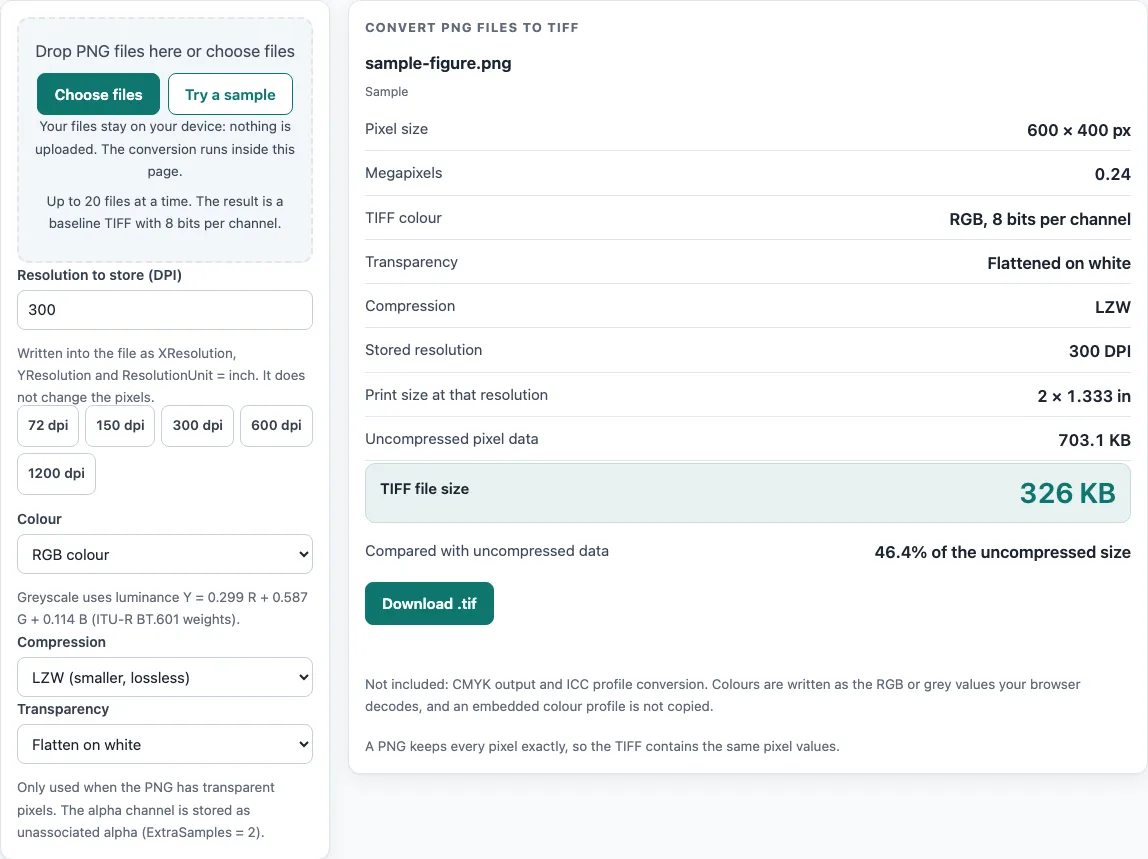
- Open the page. A 600 × 400 pixel sample is already converted with the default settings. Select “Try a sample” to redraw it.
- Select your own PNG files. You can add up to 20 at once. Extra files are ignored, and the page says so. Choosing real files replaces the sample.
- Set “Resolution to store (DPI)” to the stored resolution you need. The choices are 72, 150, 300, 600 and 1200, and the default is 300.
- Under “Colour”, choose “RGB colour” or “Greyscale”.
- Under “Compression”, choose “None” or “LZW”. LZW is lossless, so the decoded pixels match the input.
- If your PNG has transparent pixels, choose “Flatten on white” or “Keep as alpha channel”. This choice appears only for PNG files.
- Read the result card for each file: pixel size, print size at the stored DPI, uncompressed pixel data size, and the real TIFF file size. Pay attention to any warning above 100 megapixels or below 150 DPI.
- Select “Download all” to start one download per file. Each file keeps its source name with .tif in place of the extension, so photo.final.png becomes photo.final.tif.
Changing DPI, colour, compression or transparency converts the files again, so you can compare settings on the same images. Files are converted one at a time. The page warns you above 100 megapixels, where memory use can be high, but the file is still written when the browser has enough memory.
How does the PNG to TIFF conversion keep colours the same?
PNG stores pixels without loss, so the TIFF holds the same colour values as an 8-bit RGB, RGBA or greyscale PNG. A 16-bit PNG is read by the browser at 8 bits per channel, so its values are reduced to that depth. When you choose “Greyscale”, each pixel’s luminance is Y = 0.299 R + 0.587 G + 0.114 B (ITU-R BT.601 weights), rounded to the nearest integer. The browser reads the picture in bands of rows, so very large images need memory for the whole bitmap but no second full copy. An embedded colour profile in the source file is not copied into the TIFF, and there is no CMYK output or ICC profile conversion.
How are strip size and print size worked out?
The strip size follows the TIFF 6.0 advice of about 8 KB per strip. Rows per strip equals floor(8192 ÷ bytes per row), with a minimum of one row. Print size is the pixel count divided by the DPI. The 600 × 400 sample at 300 DPI prints at 2 inches wide (600 ÷ 300) and about 1.33 inches high (400 ÷ 300). The DPI value sets the stored resolution only. It does not resample the picture or add pixels, so changing it changes the printed size but not the pixel grid.
How does flattening transparency on white change colours?
“Flatten on white” composites each pixel as (colour × alpha + 255 × (255 − alpha)) ÷ 255. A fully transparent pixel becomes white, and a fully opaque pixel keeps its colour. Partly transparent pixels move toward white, so they look lighter than the original colour. For example, (255, 0, 0, 128) becomes (255, 127, 127), and (10, 20, 30, 0) becomes white (255, 255, 255). “Keep as alpha channel” instead adds a fourth sample for RGB or a second sample for greyscale, with ExtraSamples = 2 (unassociated alpha). If the PNG has no transparent pixels, the TIFF is written without an alpha channel, and the card says “No transparent pixels found”. The LZW output and the TIFF structure were checked with 19 automated tests, and the files were decoded by separate TIFF readers.
What does the TIFF file contain?
The output is a baseline TIFF: little-endian, one image file directory, 8 bits per channel and written in strips. Compression is either None or LZW, and the DPI is stored as XResolution and YResolution with the resolution unit set to inch. There is no 16-bit output, no multi-page TIFF and no copying of metadata. An image whose TIFF would exceed 4 GB is refused with a message.
Frequently asked questions
Does the PNG to TIFF converter upload my files?
No. The conversion runs in your browser, and no network request is made for it. Your files stay on your device while they are converted.
How many PNG files can I convert at once?
You can add up to 20 files at once. Extra files are ignored, and the page tells you so. Each file gets its own result card.
Which DPI should I choose for my TIFF?
The default is 300 DPI, and the other choices are 72, 150, 600 and 1200. DPI sets the stored resolution and print size only. Publisher specifications change, so check the journal’s current author guide before you submit.
Why does my result card show a warning?
A warning appears above 100 megapixels because of memory use, and for a stored resolution below 150 DPI. The file is still written when the browser has enough memory. The warning tells you what to check, and it does not stop the conversion.
Does my PNG’s colour profile carry over to the TIFF?
No. An embedded colour profile in the source file is not copied into the TIFF. The page does not offer CMYK output or ICC profile conversion, so check the journal’s current author guide for any colour mode it asks for.
Is LZW compression lossless?
Yes. LZW is lossless, so the decoded pixels equal the input pixels. “None” writes uncompressed pixel data. The result card shows the real TIFF file size as a percentage of the uncompressed size, so you can compare the two choices.
Related tools
- DPI to Pixels: use it when you want to convert a DPI value into a pixel count.
- Print Size Calculator: use it to check how large an image prints at a chosen DPI.
- Image Size Calculator: use it when you are working out image dimensions.
- JPG to TIFF Converter: use it when your source file is a JPG rather than a PNG.
- Pixels to Inches: use it to convert a pixel count into inches at a given DPI.
- PPI to DPI: use it when a figure is labelled in PPI and you need the DPI value.