Pixels to Inches
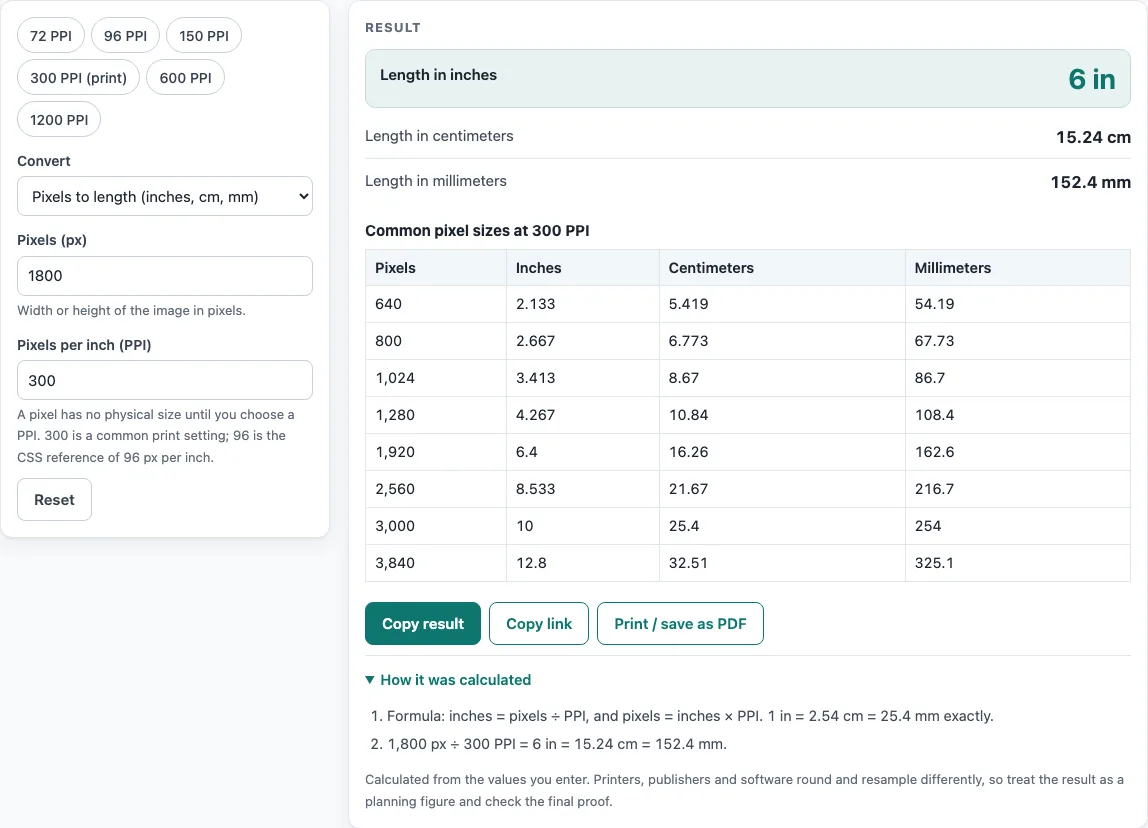
Enter a pixel count and a PPI to get the length in inches, cm and mm, or switch the direction to turn a length into pixels.
Recent
Your last 10 settings, saved only in this browser. Nothing is uploaded.
This pixels to inches tool divides a pixel count by a pixels per inch (PPI) value to give a length in inches. Enter a pixel count and a PPI, and the result appears in inches, centimeters and millimeters. Switch the Convert select to length to pixels to find how many pixels a length needs at a given PPI.
Pixels have no fixed physical size, so the answer depends on the PPI you choose. The calculation runs in your browser, and nothing you enter is uploaded. The tool is free and needs no sign-up. Preset chips set the PPI quickly, and a table shows several pixel widths at the same PPI so you can compare them side by side.
How to use the Pixels to Inches tool
- Set “Convert” to pixels to length if you want a length from a pixel count. Choose length to pixels if you want a pixel count from a length.
- For pixels to length, type the pixel count in “Pixels (px)”. Numbers with thousands separators, such as 1,800, are accepted.
- For length to pixels, type the length in “Length (in, cm or mm)” and select its unit.
- Enter a value in “Pixels per inch (PPI)”, or click a preset chip: 72, 96, 150, 300 (print), 600 or 1200.
- Read the result. Pixels to length shows inches, centimeters and millimeters. Length to pixels shows the pixel count rounded to the nearest whole pixel, plus the count before rounding.
- Check the notes. A note appears when length to pixels is not a whole number. At 96 PPI, a note says this is the CSS reference only. A warning appears when the PPI is above 10,000.
- Read the calculation steps, which show your own numbers worked through.
- Use the table to see 640, 800, 1024, 1280, 1920, 2560, 3000 and 3840 px in inches, centimeters and millimeters at your chosen PPI.
- If an error appears, check that each value is a number and that the PPI and length are greater than zero.
Try the default values first. 1800 px at 300 PPI gives 6 in, which is 15.24 cm or 152.4 mm.
What does pixels to inches mean?
A pixel is a single dot in a digital image or on a screen, and on its own it has no length. An inch becomes meaningful only when you decide how many pixels fit into one inch, which is the PPI. The formula is inches = pixels ÷ PPI.
How do you convert pixels to inches?
Divide the pixel count by the PPI. For example, 1920 px at 96 PPI gives 1920 ÷ 96 = 20 in. For 1000 px at 72 PPI, 1000 ÷ 72 = 13.888…, which is shown as 13.89 in.
How do you convert inches to pixels?
Multiply the length in inches by the PPI. For example, 4 in at 300 PPI gives 4 × 300 = 1,200 px. A length in centimeters must be converted to inches first by dividing by 2.54. For 8.5 cm at 600 PPI, 8.5 ÷ 2.54 = 3.3465 in, and 3.3465 × 600 = 2,007.87 px, which is shown as 2,008 px.
Why does the PPI change the result?
The same pixel count spans a different length at a different PPI. For example, 1000 px is 13.89 in at 72 PPI but about 3.33 in at 300 PPI. A higher PPI packs more pixels into each inch, so the same count covers less length.
What is the exact relation between inches, centimeters and millimeters?
One inch equals 2.54 cm and 25.4 mm exactly. Because of this, 6 in equals 15.24 cm and 152.4 mm. To convert centimeters to inches, divide by 2.54. To convert millimeters to inches, divide by 25.4.
Why do sources give different PPI values?
W3C, in CSS Values and Units, defines the CSS reference pixel as 96 px per inch, viewed at about 28 in. That figure applies to CSS. Print guides use other values, such as 72, 150 and 300. The tool does not pick one value for you, so you choose the PPI that matches your purpose. Publisher specifications change over time, so check the journal’s current author guide before you submit a figure.
Why is a length to pixels result rounded?
A length multiplied by a PPI often gives a fraction of a pixel, and pixels are whole units. The tool rounds to the nearest whole pixel and also shows the count before rounding, so you can see how much rounding changed the value.
Worked examples
| Input | Result |
|---|---|
| 1,800 px at 300 PPI | 6 in = 15.24 cm |
| 1,920 px at 96 PPI | 20 in = 50.8 cm |
| 1,000 px at 72 PPI | 13.89 in = 35.28 cm |
| 4 in at 300 PPI | 1,200 px |
| 8.5 cm at 600 PPI | 2,008 px |
Calculated by the tool above; open it with the same values to see each step.
Frequently asked questions
Is there one correct PPI for pixels to inches?
No. Pixels have no fixed physical size, so the result depends on the PPI you choose. Use the PPI named in the guide you are following, and note that W3C’s CSS reference is 96 px per inch.
What does the “Convert” control do?
It sets the direction of the calculation. Pixels to length gives inches, centimeters and millimeters from a pixel count. Length to pixels gives a pixel count from a length.
Why does the tool show 2,008 px instead of 2,007.87?
Pixels are whole units, so the length to pixels result is rounded to the nearest whole pixel. The count before rounding, 2,007.87, is also shown.
Does the tool upload my numbers?
No. Everything is calculated in your browser, and nothing is uploaded.
What does the warning above 10,000 PPI mean?
The tool shows a warning when the PPI is above 10,000. Check that the PPI value is the one you intend, because a very high PPI makes each pixel correspond to a very small length.
Why do I see an error message?
An error appears when a value is missing or not a number, or when the PPI or length is zero or less. Correct the value and the result will update.
Does the result tell me what a journal requires?
No. This tool only calculates lengths from your inputs. It does not check journal requirements. The journal’s current author guide decides, so read it before you submit.
Related tools
- DPI to Pixels: use this when your figure is described in dots per inch and you need a pixel count.
- Image Size Calculator: use this when you want to work out image dimensions from other values.
- JPG to TIFF Converter: use this when you need to change a JPG file into the TIFF format.
- PNG to TIFF Converter: use this when you need to change a PNG file into the TIFF format.
- PPI to DPI: use this when you have a PPI value and need the equivalent DPI.
- Print Size Calculator: use this when you are planning how large a figure will print.