JPG to TIFF Converter
Choose one or more JPG files, set the DPI, colour and compression, and download baseline TIFF files. The conversion runs in this page; JPEG artifacts are not removed.
Recent
Your last 10 settings, saved only in this browser. Nothing is uploaded.
How to use the JPG to TIFF Converter
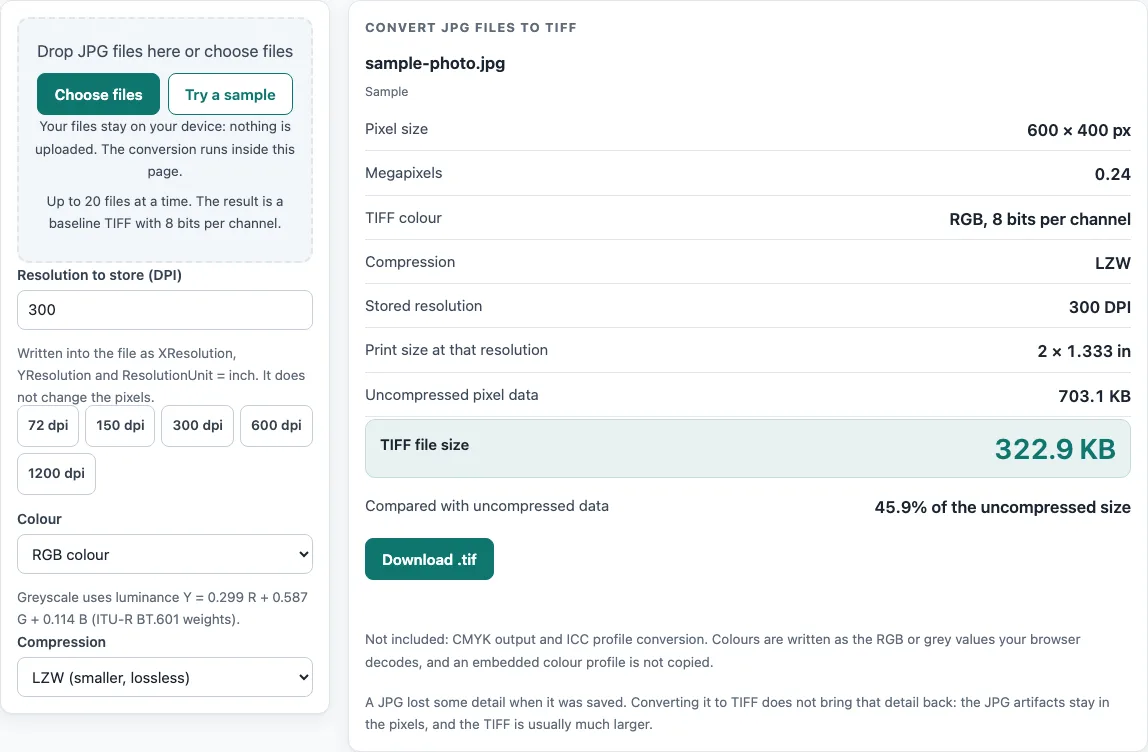
- Look at the sample result shown when the page opens. It is a 600 × 400 pixel figure drawn in your browser and converted with the default settings. “Try a sample” redraws it.
- To convert your own pictures, choose real files. Choosing real files replaces the sample. You can add up to 20 files at once. Extra files are ignored, and the page tells you so.
- Set the DPI. The default is 300. The options are 72, 150, 300, 600 and 1200. This sets the stored resolution only. It does not add pixels.
- Pick a colour option. “RGB colour” keeps three channels. “Greyscale” writes one channel.
- Pick a compression option. “None” stores raw pixel data. “LZW” is lossless, so the pixels stay the same, but it helps little on photographs.
- Read each result card. It shows the pixel size, megapixels, TIFF colour, compression, stored resolution, print size, uncompressed pixel data size, the real file size and its percentage of the uncompressed size.
- Check for warnings. A warning appears above 100 megapixels and for a stored resolution below 150 DPI. The file is still written when the browser has enough memory.
- Click the download for one file, or “Download all” to start one download per file.
Changing DPI, colour or compression converts the files again and updates the cards. There is no transparency option on this page, because JPEG has no transparency.
What changes when a JPG becomes a TIFF?
Converting does not add detail. The TIFF holds the same pixels the browser decoded from the JPG, including any JPEG compression artifacts. The browser applies the EXIF orientation during decoding, so the TIFF has upright pixels and no orientation tag. EXIF data itself is not copied, and an embedded colour profile is not copied into the TIFF either.
Why is the TIFF usually bigger than the JPG?
The uncompressed pixel data size is width × height × the number of channels, with 8 bits per channel. An RGB image has 3 channels and a greyscale image has 1. LZW compression is lossless, but on photographs it helps little, so the TIFF is usually much larger than the JPG. Each result card shows the real TIFF size as a percentage of the uncompressed size, which is the easiest way to see how much compression was achieved.
How are the strips in a TIFF worked out?
The output is written in strips. A TIFF whose size would exceed 4 GB is refused with a message. Bytes per row equals width × channels. The strip size follows the TIFF 6.0 advice of about 8 KB per strip, so rows per strip = floor(8192 ÷ bytes per row), with a minimum of 1 row. For example, a 600-pixel-wide RGB image has 1,800 bytes per row. 8,192 ÷ 1,800 = 4.55, so each strip holds 4 rows.
How is a greyscale value calculated?
Greyscale uses the luminance formula Y = 0.299 R + 0.587 G + 0.114 B, with the ITU-R BT.601 weights. The result is rounded to the nearest integer. Each pixel’s red, green and blue values are replaced by this single value. No CMYK output is made, and no ICC profile conversion is applied.
How do DPI and print size relate?
Print size equals pixels ÷ DPI. A 600-pixel-wide image stored at 300 DPI gives a print width of 2 inches. The DPI is written as XResolution and YResolution with ResolutionUnit set to inch. The picture is not resampled, so changing DPI changes the print size, not the pixel count. Publisher figure specifications differ and change over time, so check the journal’s current author guide before submitting. The numbers on each card are calculated from your inputs.
What does the TIFF file contain?
The output is a baseline TIFF: little-endian, one image file directory and 8 bits per channel. Compression is either None or LZW, with LZW written without a predictor. Files are converted one at a time, and the picture is read in bands of rows, so very large images need the browser’s canvas for the whole bitmap but no second full copy.
Frequently asked questions
Does converting a JPG to TIFF improve the image quality?
No. The TIFF stores the same pixels decoded from the JPG, including compression artifacts. Conversion does not add detail.
Why is my TIFF much larger than the JPG?
Uncompressed TIFF stores every pixel. LZW is lossless but helps little on photographs, so the TIFF is usually much larger. Compare the percentage on the result card.
Does the DPI setting change the number of pixels?
No. DPI sets the stored resolution and the print size, which equals pixels ÷ DPI. It does not resample the picture or add pixels.
Is there a transparency option for JPG files?
No. JPEG has no transparency, so no transparency option is shown and the TIFF has no alpha channel.
Are my JPG files uploaded when I convert them?
No. The conversion runs in the browser, nothing is uploaded, and no network request is made for it. The tool is free and needs no sign-up.
Does the TIFF keep the colour profile from my JPG?
No. An embedded colour profile is not copied into the TIFF, and no ICC profile conversion is made. The output is either RGB colour or Greyscale.
Why does my result card show a warning?
A warning appears above 100 megapixels because of memory use, and for a stored resolution below 150 DPI. The file is still written when the browser has enough memory.
Does the TIFF keep the EXIF data and orientation?
The browser applies the EXIF orientation when it decodes the JPG, so the TIFF holds upright pixels and has no orientation tag. The EXIF data itself is not copied.
Related tools
- PNG to TIFF Converter: use this when your source is a PNG and you need a TIFF with the same settings.
- DPI to Pixels: use this to work out how many pixels a print size needs at a given DPI.
- Pixels to Inches: use this to convert a pixel count into a print size in inches.
- PPI to DPI: use this to see how screen pixel density and print resolution terms relate.
- Print Size Calculator: use this to check the printed dimensions of an image before you export it.
- Image Size Calculator: use this to calculate image dimensions from your size and resolution inputs.