Journal Figure Checker
Pick a publisher, a figure type and the width the figure will be printed at, then drop your figure files. You get the effective dpi, format, colour mode and file size next to what the publisher guide says.
Recent
Your last 10 settings, saved only in this browser. Nothing is uploaded.
The journal figure checker is a free tool that reads the header of your figure file and compares its size, resolution, colour mode and format with the figure rules a publisher gives. It runs in your browser. Your file is never uploaded, no network request is made with it, and no sign-up is needed.
It reads PNG, JPEG, TIFF, GIF, BMP and WebP files for pixel size, stored dpi, colour mode and bit depth. For PDF, EPS and PS files it reads only the format and file size. Results are calculated from your inputs or from what the named guide says. Publisher rules change, so check the journal’s current author guide before you submit.
How to use the Journal Figure Checker
- Open the publisher select and choose a publisher. Choose “Custom” instead if you want to type your own minimum dpi, maximum file size and formats. The publisher pages fix the publisher.
- Pick the figure type: line art, grayscale image, colour image, or combination (image and line art). A publisher that gives no number for a type has no resolution row for it.
- Set the printed width. Choose one of the publisher’s listed widths, or choose “Type my own width” and enter a value in in, cm or mm.
- Choose your figure file. The checker reads only its header, inside your browser.
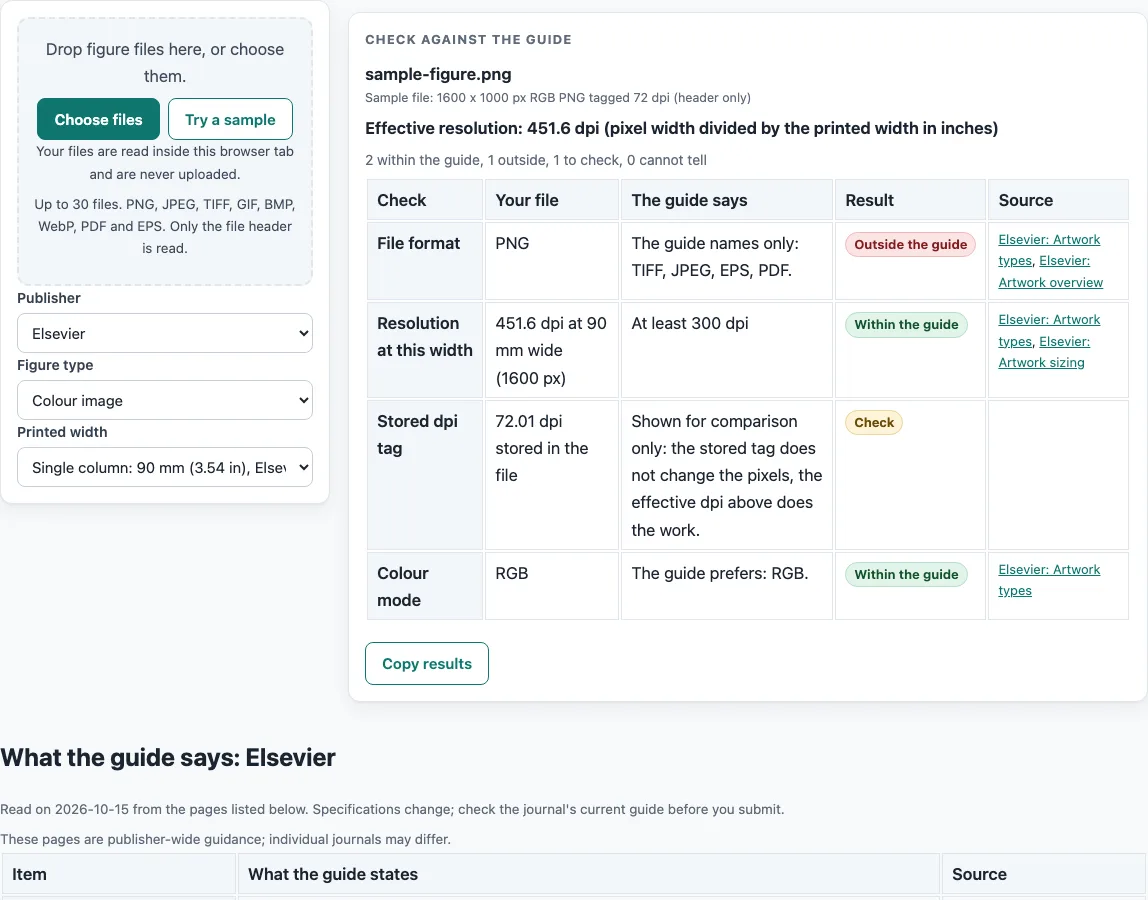
- Read the rows. You will see the file format, the resolution at your chosen width (one row per rule set the publisher gives), the stored dpi tag (information only), the height at your chosen width, the colour mode and bit depth, TIFF compression, alpha and pages (PLOS), the printed width range, and the file size.
- Read each status word. “Within the guide” and “Outside the guide” compare your file with the named guide. “Check” marks a preferred or conditional value, a dpi above the stated maximum, or a detail that is unknown. “Cannot tell” appears when the header does not show the answer, such as the colour mode of a WebP file.
Each publisher page lists its numbers with source links and the read date 2026-10-15. Use them to confirm the figures.
How is effective dpi calculated for a figure file?
Effective dpi is the pixel width divided by the printed width in inches. Inches equal millimetres divided by 25.4. The dpi tag stored in the file is shown separately and is not used for the result.
For the built-in sample, a generated PNG header of 1600 x 1000 px with an RGB colour mode and a 72 dpi tag, a width of 90 mm gives 90 ÷ 25.4 = 3.543 inches. Then 1600 ÷ 3.543 = 451.5 dpi. The 72 dpi tag plays no part in that figure.
A dpi minimum is met when the pixel width is at least the minimum multiplied by the width in inches, minus 0.5 px. The Elsevier pixel table rounds to whole pixels, which is why 30 mm at 300 dpi gives 354 px. IEEE writes its minimums as “>300dpi” and “>600dpi”. The checker treats these as strictly greater than the minimum, so a figure exactly at the minimum does not meet that rule.
Why do publisher rules differ, and what does “Check” mean?
Publishers set different numbers, and some publisher pages disagree with each other. The checker shows each conflict instead of choosing one silently.
Elsevier’s Artwork overview asks for TIFF export at “1000 dpi for a graph and others 500 dpi”. Its Artwork types page gives 300 dpi as the minimum for grayscale and RGB. The checker uses the per-type minimums of 1000, 300 and 500 dpi, and shows the 1200 dpi fine-line figure as a conditional note. For EPS combination art, Elsevier gives “300 (500) dpi for halftones and 1000 dpi for line art”, while its TIFF and JPEG combination row says 500 dpi. The checker uses 500 dpi.
Springer’s journal pages ask for 1200 dpi line art, while the Nature guides give no line-art dpi and name 300 dpi for photographic images. The research figure guide gives 300 dpi for photographs in one place and “For images, minimum 450 dpi” in another. The Nature guide says JPEG, TIFF and PNG cannot be used, while the journal pages name TIFF. Both rule sets appear as separate rows.
When a value is conditional, above a stated maximum, or unclear from the source, the checker shows “Check”. The checker only compares a file with the numbers a guide states and makes no statement about what a journal will decide. Read the journal’s current author guide before you submit.
How are colour mode and file size read?
The colour mode comes from the file header: the component count for JPEG (four components means CMYK), the colour type for PNG, the PhotometricInterpretation tag for TIFF and the bit count for BMP. The checker reports the mode and does not convert colours. File size is shown in decimal megabytes, where 1 MB is 1,000,000 bytes.
Frequently asked questions
Does the journal figure checker upload my file?
No. The checker reads only the file header inside your browser. The file is never uploaded, and no network request is made with it.
Why does the dpi shown differ from the dpi tag in my file?
The result uses effective dpi, which is pixel width divided by printed width in inches. The stored dpi tag is shown separately as information and is not used for the result.
Does “Within the guide” mean my figure is ready to submit?
No. “Within the guide” means the header matches the rule the named guide gives for the values you entered. Publishers change their specifications, so check the journal’s current author guide before you submit.
What does “Cannot tell” mean?
It means the header does not hold the detail needed for that row. For example, the checker cannot tell the colour mode of a WebP file from its header.
Which files show pixel information?
PNG, JPEG, TIFF, GIF, BMP and WebP files show size, stored dpi, colour mode and bit depth. PDF, EPS and PS files show only the format and file size, because they contain no pixels to read.
Can I check against my own rules?
Yes. Choose “Custom” to enter your own minimum dpi, maximum file size and formats. The checker uses only those three values for the result.
Related tools
- ACS Figure Requirements: use it to see the ACS figure rules, including printed width ranges.
- Elsevier Figure Requirements: use it to compare Elsevier’s per-type minimums and export notes.
- Embed Fonts in PDF Checker: use it when your figure is a PDF and you need to check its fonts.
- Journal Figure Size Calculator: use it to work out figure widths and sizes before you export.
- IEEE Figure Requirements: use it to read IEEE’s “greater than” minimums in full.
- PLOS Figure Requirements: use it to see PLOS rules for TIFF compression, alpha and pages.
- Springer Nature Figure Requirements: use it to compare the Springer journal pages with the Nature guides.
- Wiley Figure Requirements: use it to check Wiley’s pixel width and printed width rules.