Image Size Calculator
Enter the pixel size, DPI and bit depth to see the print size, megapixels and uncompressed size, then try a new width.
Recent
Your last 10 settings, saved only in this browser. Nothing is uploaded.
How to use the image size calculator
- Enter the pixel width and height in “Width (px)” and “Height (px)”. Both must be whole numbers greater than zero.
- Enter the resolution in “Resolution (DPI)”. The print size is the pixel count divided by the DPI, shown in inches and centimeters.
- Choose the bit depth and channels that match your image, in “Bit depth and channels”, for example “RGB, 8-bit per channel (3 channels)” or “CMYK, 16-bit per channel (4 channels)”.
- Read the results: print size, megapixels and uncompressed size. The uncompressed size is shown in MB (1,000,000 bytes), MiB (1,048,576 bytes) and bytes.
- To see a version at the same proportions, type a number in “New width (px), optional”, or leave it empty to skip this step. The new height is calculated and rounded to a whole pixel, and the percentage change is shown.
- Check for messages. A warning appears for more than 500 million pixels or when the new width is larger than the original. An error appears when width or height is not a whole number, or when a value is zero or missing.
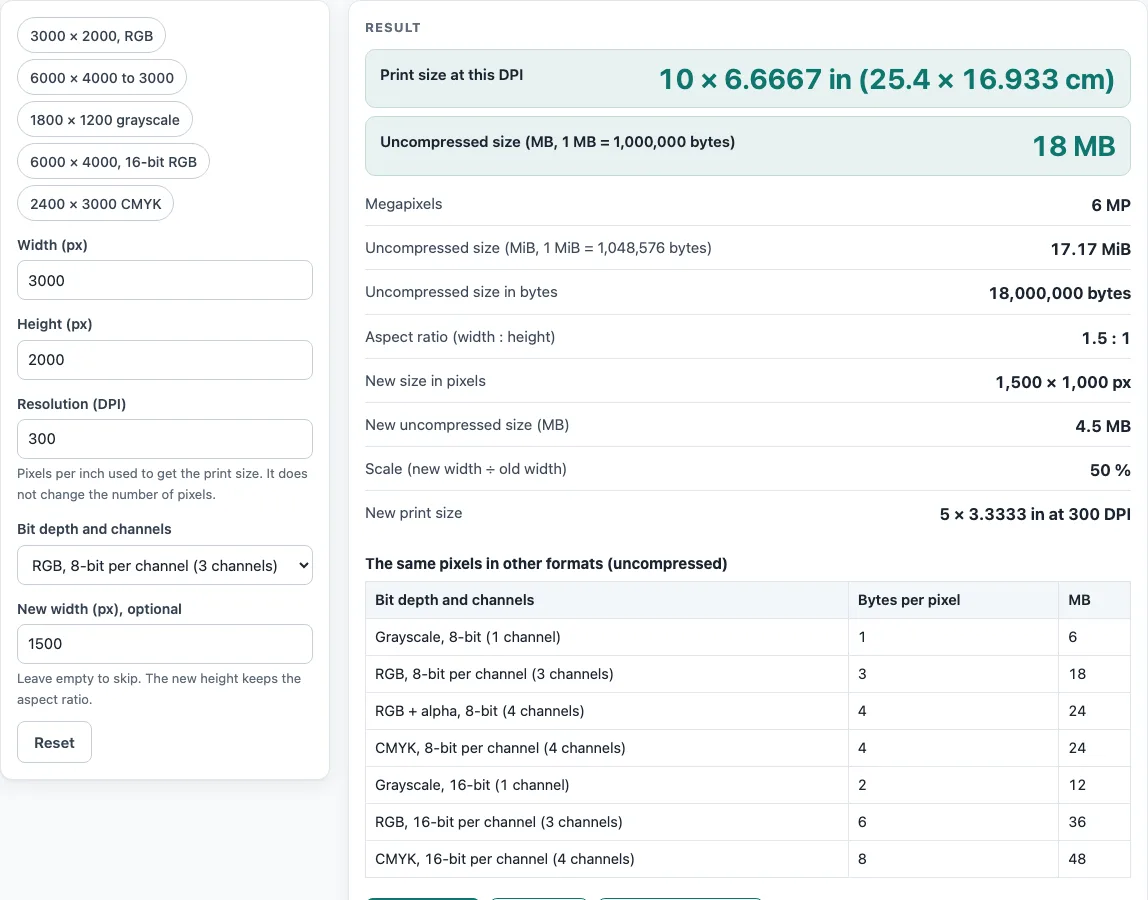
To start from an example, choose one of the presets: “3000 × 2000, RGB”, “6000 × 4000 to 3000”, “1800 × 1200 grayscale”, “6000 × 4000, 16-bit RGB” or “2400 × 3000 CMYK”. The starting values are 3000 × 2000 px at 300 DPI in RGB 8-bit with a new width of 1500, so you can change one value at a time and watch how the results move.
What is the formula for print size?
Print size equals the pixel count divided by the DPI. A 3000-pixel width at 300 DPI prints 10 inches wide, and a 2000-pixel height prints 6.667 inches high. In centimeters, that is 25.4 × 16.93 cm. Changing only the DPI changes the printed size but not the pixel count. The same 3000 pixels at 150 DPI would print 20 inches wide.
How are megapixels and aspect ratio worked out?
Megapixels equal width multiplied by height, divided by 1,000,000. A 3000 × 2000 image has 6,000,000 pixels, which is 6 MP. The aspect ratio is the width divided by the height, so 3000 ÷ 2000 gives 1.5 : 1. When you enter a “New width (px), optional” value, the height is scaled by the same ratio, so a 1500-pixel width gives 1,500 × 1,000 px.
How is uncompressed size calculated?
Uncompressed size equals width × height × bytes per pixel. The bytes per pixel depend on the format:
- Gray 8-bit: 1 byte
- RGB 8-bit: 3 bytes
- RGB + alpha 8-bit: 4 bytes
- CMYK 8-bit: 4 bytes
- Gray 16-bit: 2 bytes
- RGB 16-bit: 6 bytes
- CMYK 16-bit: 8 bytes
For the default 3000 × 2000 px image in RGB 8-bit, that is 18,000,000 bytes, or 18 MB, or 17.17 MiB. A 6000 × 4000 RGB 16-bit image is 144 MB. A 2400 × 3000 CMYK 8-bit image is 28.8 MB, and a 1800 × 1200 gray 8-bit image is 2.16 MB.
Why do MB and MiB give different numbers?
MB counts 1,000,000 bytes, and MiB counts 1,048,576 bytes. The same 18,000,000 bytes is 18 MB or 17.17 MiB. Check which unit a source uses before comparing numbers. The figures do not include headers or metadata, so a saved file will not match them exactly.
Why can’t the calculator predict a saved file’s size?
The size of a compressed PNG, JPEG, or TIFF with LZW depends on the content of the image, so it cannot be predicted from pixel dimensions alone. The uncompressed figures show the raw data size for the same pixels in each format, which gives you a reference point rather than a final file size.
Does a publisher’s size limit match these numbers?
Publisher specifications differ and change over time. The calculator reports what your inputs produce, but it does not know a journal’s rules. Check the journal’s current author guide before you submit a figure, and confirm the DPI and pixel dimensions it asks for.
Worked examples
| Input | Result |
|---|---|
| 3000 × 2000 px, 300 DPI | 10 × 6.6667 in (25.4 × 16.933 cm); 18 MB uncompressed |
| 4000 × 3000 px, 300 DPI | 13.333 × 10 in (33.867 × 25.4 cm); 36 MB uncompressed |
| 1800 × 1200 px, 300 DPI | 6 × 4 in (15.24 × 10.16 cm); 2.16 MB uncompressed |
| 6000 × 4000 px, 600 DPI | 10 × 6.6667 in (25.4 × 16.933 cm); 144 MB uncompressed |
| 2400 × 3000 px, 300 DPI | 8 × 10 in (20.32 × 25.4 cm); 28.8 MB uncompressed |
Calculated by the tool above; open it with the same values to see each step.
Frequently asked questions
Does the image size calculator upload my images?
No. You enter numbers, and the calculation runs in your browser. No file is read.
What DPI should I enter for a figure?
The calculator does not choose a DPI for you. Enter the resolution your journal, printer or event asks for, and check the journal’s current author guide if you are unsure.
Why does my saved file differ from the uncompressed size?
The figure does not include headers or metadata. For compressed PNG, JPEG or TIFF with LZW, the saved size depends on the content of the image.
What does the warning about 500 million pixels mean?
The calculator shows this warning when an image has more than 500 million pixels. Check that the dimensions you entered are the ones you intend.
Will a larger new width add detail?
No. Scaling up adds pixels but no detail, and the calculator shows a warning whenever the new width is larger than the original.
What does the table of formats show?
It lists the uncompressed size in MB of the same pixels in all seven bit depth and channel choices, so you can compare them side by side. It does not include headers or metadata.
Which bit depth should I choose?
Choose the bit depth and channels that match your image. The presets give examples for gray, RGB, CMYK and 16-bit RGB, and you can compare the uncompressed sizes for each.
Related tools
- DPI to Pixels: Use it when you know the physical size and DPI and need the pixel count.
- JPG to TIFF Converter: Use it when you need to change a JPG file into a TIFF file.
- Pixels to Inches: Use it when you have a pixel count and want the size in inches.
- PNG to TIFF Converter: Use it when you need to change a PNG file into a TIFF file.
- PPI to DPI: Use it when your source gives resolution in PPI and you need the DPI value.
- Print Size Calculator: Use it when you want to focus only on the printed dimensions of an image.