Journal Figure Size Calculator
Choose a column width from a publisher page or type your own, add height and DPI, and see the pixel size, the file size and how small your text becomes.
Recent
Your last 10 settings, saved only in this browser. Nothing is uploaded.
How to use the Figure Size Calculator
- Choose “Figure width” from the list, or pick “Type my own width” and enter “Your figure width”. The preset buttons are “Elsevier 90 mm × 60 mm”, “Elsevier 190 mm wide”, “IEEE one column”, “IEEE two columns” and “PLOS 19.05 cm, 14 pt”.
- Enter the “Figure height” and choose its unit: mm, cm or in.
- Enter the DPI. The DPI field is free, so you can type any value. Publishers name different ranges, so check your target journal.
- Choose the “Color mode for the file size”: grayscale, RGB or CMYK. Each is calculated at 8-bit.
- Enter the width the figure was drawn at and the text size used in the drawing. The scale factor and the text size after scaling depend on these two values.
- Read the results: the pixels, the uncompressed size, the scale factor and the text size after scaling.
- Read any warnings. They appear for enlarging above the drawn width, text under 5 pt after scaling, and very large images. PLOS ONE checks run only when a PLOS width is selected.
- Check the current author guide for your journal before you submit.
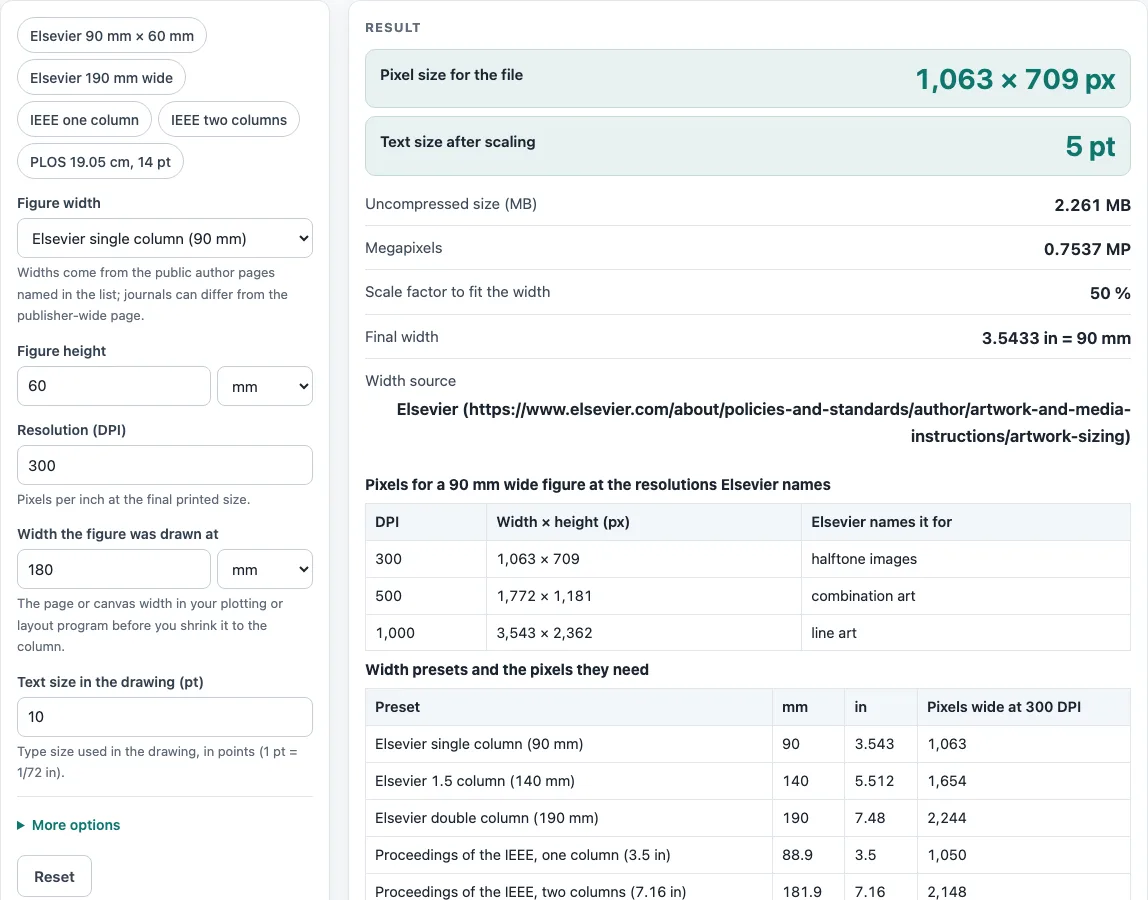
For the default of 90 mm × 60 mm at 300 DPI, the result is 1,063 × 709 px and 2.26 MB uncompressed as RGB 8-bit. Change one input at a time to see how each one affects the output.
What is a journal figure size?
A journal figure size is the width and height a publisher gives for a figure. The width is usually the most important value, because publishers often set widths for single and double columns. The sources on this page give different numbers. Elsevier lists 90 mm for a single column, 140 mm for 1.5 columns and 190 mm for double columns. The Proceedings of the IEEE lists 3.5 in (88.9 mm) for one column and 7.16 in (182 mm) for two. PLOS ONE gives a minimum of 6.68 cm and a maximum of 19.05 cm.
Resolution guidance also differs. Elsevier recommends 300, 500 or 1000 DPI depending on image type. IEEE states more than 300 or 600 DPI. PLOS states 300 to 600 DPI. The DPI field is free because the sources do not agree, so pick the value your target journal names.
Publisher-wide pages may not match a particular journal’s instructions. A table in the tool shows the pixels for the chosen width at 300, 500 and 1000 DPI, which Elsevier names for halftone, combination and line art. For 90 mm, the Elsevier page gives 1063, 1772 and 3543 px. The IEEE Author Center resolution page does not state the 3.5 in and 7.16 in widths, so this calculator uses only the Proceedings of the IEEE page for them.
What does the PLOS ONE check look at?
The PLOS ONE figure page gives a width from 6.68 cm (789 px at 300 DPI) to 19.05 cm (2,250 px), a height of up to 22.23 cm (8.75 in), 300 to 600 DPI, and text of 8 to 12 pt. When you choose a PLOS width, the tool warns about text outside 8 to 12 pt after scaling and about a height above 8.75 in. It does not run these checks for other widths.
How are pixels and uncompressed file size calculated?
Pixels are inches multiplied by DPI, rounded to whole pixels. For a width in millimetres, first convert to inches by dividing by 25.4. For example, 3.5 in × 2.5 in at 600 DPI gives 2,100 × 1,500 px.
The uncompressed size is pixels multiplied by bytes per pixel, divided by 1,000,000. Gray uses 1 byte per pixel, RGB uses 3 and CMYK uses 4, all at 8-bit. The 2,100 × 1,500 px RGB example gives 9.45 MB. A saved file is often compressed, so its size on disk can be smaller.
The scale factor is the final width divided by the width the figure was drawn at. The text size after scaling is the text size in the drawing multiplied by the scale factor. A 180 mm drawing shrunk to 90 mm has a scale factor of 50 %, so 10 pt text becomes 5 pt.
Worked examples
| Input | Result |
|---|---|
| els1 wide, 60 mm high, 300 DPI | 1,063 × 709 px, 2.261 MB uncompressed |
| els2 wide, 120 mm high, 300 DPI | 2,244 × 1,417 px, 9.539 MB uncompressed |
| ieee1 wide, 2.5 in high, 600 DPI | 2,100 × 1,500 px, 9.45 MB uncompressed |
| plosmax wide, 6 in high, 300 DPI | 2,250 × 1,800 px, 12.15 MB uncompressed |
| 12 cm wide, 8 cm high, 300 DPI | 1,417 × 945 px, 1.339 MB uncompressed |
Calculated by the tool above; open it with the same values to see each step.
Frequently asked questions
Does a result from this calculator tell me what a journal requires?
No. The results are calculated from your inputs and show what the named guide says. Publisher specifications change, so check the journal’s current author guide before you submit.
Why do the DPI recommendations differ?
Elsevier, IEEE and PLOS publish different DPI guidance. Elsevier gives values by image type, IEEE gives more than 300 or 600, and PLOS gives 300 to 600. The calculator leaves the DPI field open so you can choose the value your journal names.
Why does the uncompressed size not match my saved file?
The uncompressed size is a calculated value for pixels and bytes per pixel. A saved file is often compressed, so its size on disk differs.
What does the PLOS ONE check do?
The check runs only when a PLOS preset is selected. It shows warnings for text outside the 8 to 12 pt range and for a height above 8.75 in.
Why do I get a warning about enlarging?
The warning appears when the final width is larger than the width the figure was drawn at. Enlarging a raster image adds pixels but no detail.
Why does IEEE show different widths on different pages?
The IEEE Author Center resolution page does not state the 3.5 in and 7.16 in widths. These values come from the Proceedings of the IEEE page. An older IEEE document rounds two columns to 7-1/16 in, which this calculator does not use.
Related tools
- Journal Figure Checker: use it to compare a figure against journal rules in one place.
- Elsevier Figure Requirements: use it to read Elsevier’s width and resolution guidance.
- IEEE Figure Requirements: use it to look up IEEE column widths and DPI notes.
- PLOS Figure Requirements: use it to check PLOS width limits and DPI guidance.
- ACS Figure Requirements: use it when your target journal follows ACS guidance.
- Springer Nature Figure Requirements: use it when your target journal is published by Springer Nature.
- Wiley Figure Requirements: use it when your target journal is published by Wiley.
- Embed Fonts in PDF Checker: use it when you need to check fonts in a PDF figure.