DPI to Pixels
Enter the print size and the DPI to see how many pixels wide and high the image must be, and its megapixels.
Recent
Your last 10 settings, saved only in this browser. Nothing is uploaded.
How to use DPI to Pixels
- Enter the print width. Type the number and choose the unit: inches, centimetres or millimetres.
- Enter the print height in the same way, choosing the unit that matches your measurement.
- Enter the resolution in DPI (dots per inch), for example 300.
- Read the width in pixels and the height in pixels. Each one is the print size in inches multiplied by the DPI.
- Check the total pixels and the megapixels for the whole image.
- Check the print size in inches and centimetres to confirm the calculator used the dimensions you meant.
- Look at the steps. They write out your own numbers, for example the width in inches times the DPI, so you can follow how each pixel count was reached.
- If a rounding warning appears, the exact product was not a whole number and the displayed pixel count was rounded to the nearest whole pixel.
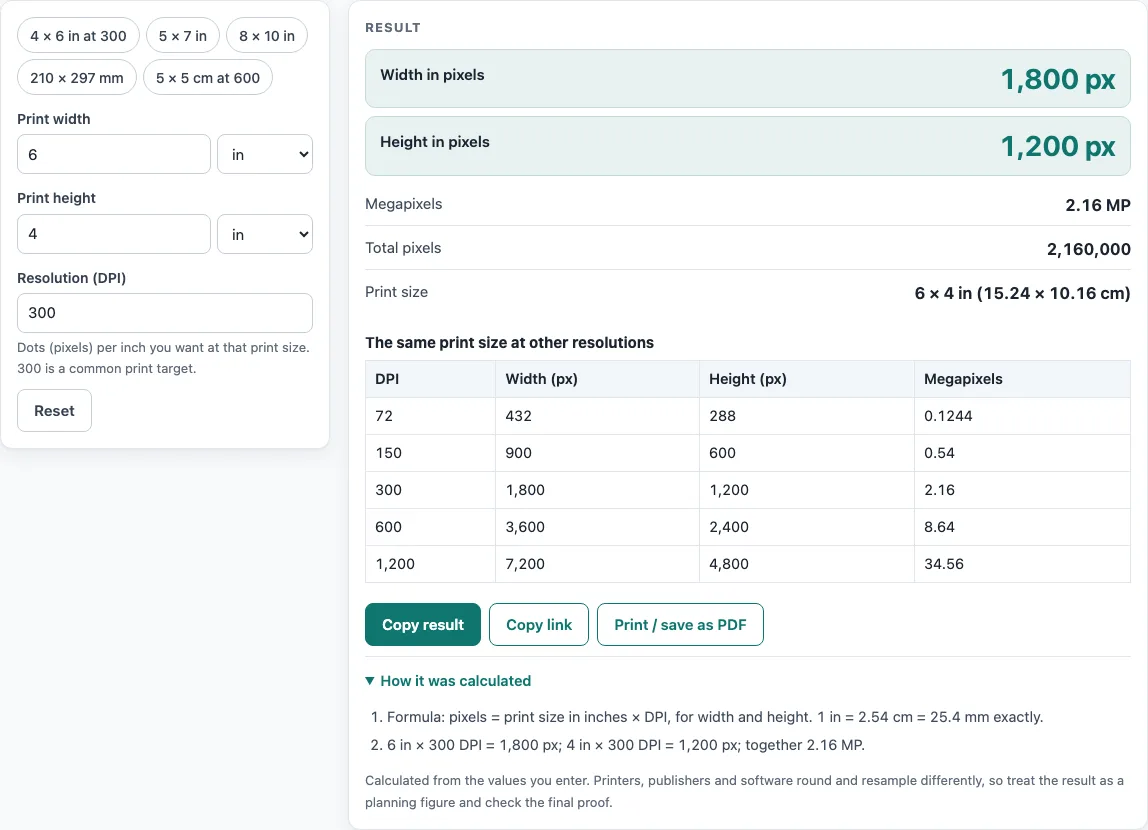
Try the default values first: 6 × 4 in at 300 DPI gives 1,800 × 1,200 pixels, which is 2.16 megapixels.
You can start from a preset instead of typing numbers. The presets are 4 × 6 in at 300, 5 × 7 in, 8 × 10 in, 210 × 297 mm and 5 × 5 cm at 600. These are generic print sizes, not journal widths. To compare options, use the table, which shows the same print size at 72, 150, 300, 600 and 1200 DPI. If the DPI is above 10,000, or the result is above 500 million pixels, a warning appears. A result smaller than one pixel, or a zero, negative or missing input, produces an error.
How do you convert DPI to pixels?
To convert DPI to pixels, multiply the print size in inches by the DPI. Do this separately for width and height, because each side of the image has its own pixel count. For a 6 × 4 inch print at 300 DPI, the width is 6 × 300 = 1,800 pixels and the height is 4 × 300 = 1,200 pixels.
What is the formula for pixels from DPI?
The formula is pixels = print size in inches × DPI. The same formula applies to width and height. The total pixel count is the width in pixels multiplied by the height in pixels, and megapixels are that total divided by one million. For 6 × 4 inches at 300 DPI, the total is 1,800 × 1,200 = 2,160,000 pixels, which is 2.16 megapixels.
How do you convert centimetres and millimetres to inches?
Convert to inches first, because the formula uses inches. One inch equals 2.54 centimetres, or 25.4 millimetres, exactly. Divide centimetres by 2.54 or millimetres by 25.4, then multiply by the DPI. For example, 5 cm is 5 ÷ 2.54 = 1.9685 inches, and at 600 DPI that gives 1,181 pixels when rounded.
Why are pixel counts rounded?
Pixels are whole units, so a calculation that produces a fraction must be rounded to the nearest whole pixel. The calculator does this for you and shows a warning when rounding happened. For 210 × 297 mm at 150 DPI, the width is 8.2677 × 150 = 1,240.16 pixels, which is shown as 1,240, and the height is 11.6929 × 150 = 1,753.94 pixels, shown as 1,754.
What do megapixels mean for a print?
Megapixels are the total pixel count divided by one million. They summarise how many pixels the whole image contains, but they do not show the shape of the image. Two images with the same megapixel count can have different widths and heights. For 8 × 10 inches at 300 DPI, the image is 2,400 × 3,000 pixels, which is 7.2 megapixels. For 4 × 6 inches at 1200 DPI, it is 4,800 × 7,200 pixels, which is 34.56 megapixels.
Why might DPI requirements differ between publishers?
Different sources can give different DPI values for the same kind of figure. The calculator does not decide which value is correct for you. It only converts the numbers you enter. Before you submit, check the journal’s current author guide, because publisher specifications change.
Worked examples
| Input | Result |
|---|---|
| 6 × 4 in at 300 DPI | 1,800 px × 1,200 px, 2.16 MP |
| 8 × 10 in at 300 DPI | 2,400 px × 3,000 px, 7.2 MP |
| 5 × 5 cm at 600 DPI | 1,181 px × 1,181 px, 1.395 MP |
| 210 × 297 mm at 150 DPI | 1,240 px × 1,754 px, 2.175 MP |
| 4 × 6 in at 1200 DPI | 4,800 px × 7,200 px, 34.56 MP |
Calculated by the tool above; open it with the same values to see each step.
Frequently asked questions
What is 6 × 4 inches at 300 DPI in pixels?
It is 1,800 × 1,200 pixels. The total is 2,160,000 pixels, or 2.16 megapixels.
Can I convert pixels back into inches?
Yes, but use the Pixels to Inches page for that. This page converts print sizes into pixels.
Why does my result show a rounding warning?
The calculated pixel count was a fraction, so it was rounded to the nearest whole pixel. The warning tells you that the displayed count is not exact.
Does the calculator tell me what a journal requires?
No. The results are calculated from the numbers you enter. They do not say what any journal asks for, so check the journal’s current author guide before you submit.
Which units can I use for the print size?
You can enter the width and height in inches, centimetres or millimetres. The calculator converts to inches first, using 1 in = 2.54 cm = 25.4 mm exactly, and then multiplies by the DPI.
Does the tool upload my numbers?
No. The calculation runs in your browser, nothing is uploaded, and no sign-up is needed.
What does the warning for DPI above 10,000 mean?
It means the DPI you entered is higher than 10,000. Check that the value is correct, because very high DPI values produce very large pixel counts.
Why do I see an error message?
An error appears when the result is smaller than one pixel, or when an input is zero, negative or missing. Check each width, height and DPI value and enter a positive number.
Related tools
- Image Size Calculator: use it when you want to work out image dimensions from other measurements.
- JPG to TIFF Converter: use it when you need to convert a JPG file to the TIFF format.
- Pixels to Inches: use it when you know the pixel count and want the print size in inches.
- PNG to TIFF Converter: use it when you need to convert a PNG file to the TIFF format.
- PPI to DPI: use it when you have a PPI value and need the equivalent DPI.
- Print Size Calculator: use it when you want to compare print sizes at different resolutions.